

EverythingDunzodoes.
Tasks
One task, many fields
A task is a title and a checkbox until you need more from it. Then it’s a start date, a due time, a priority, an XP value, a collection, a parent, and notes as long as you like — all in one window you can link straight to.
- Status
- Priority
- Start & due
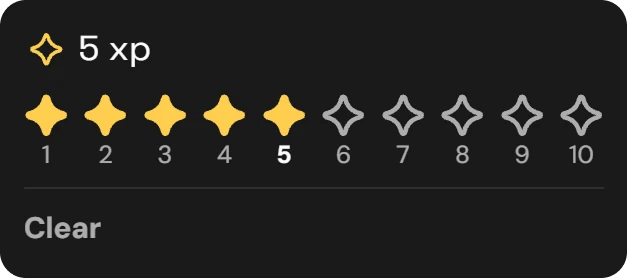
- XP 1–10
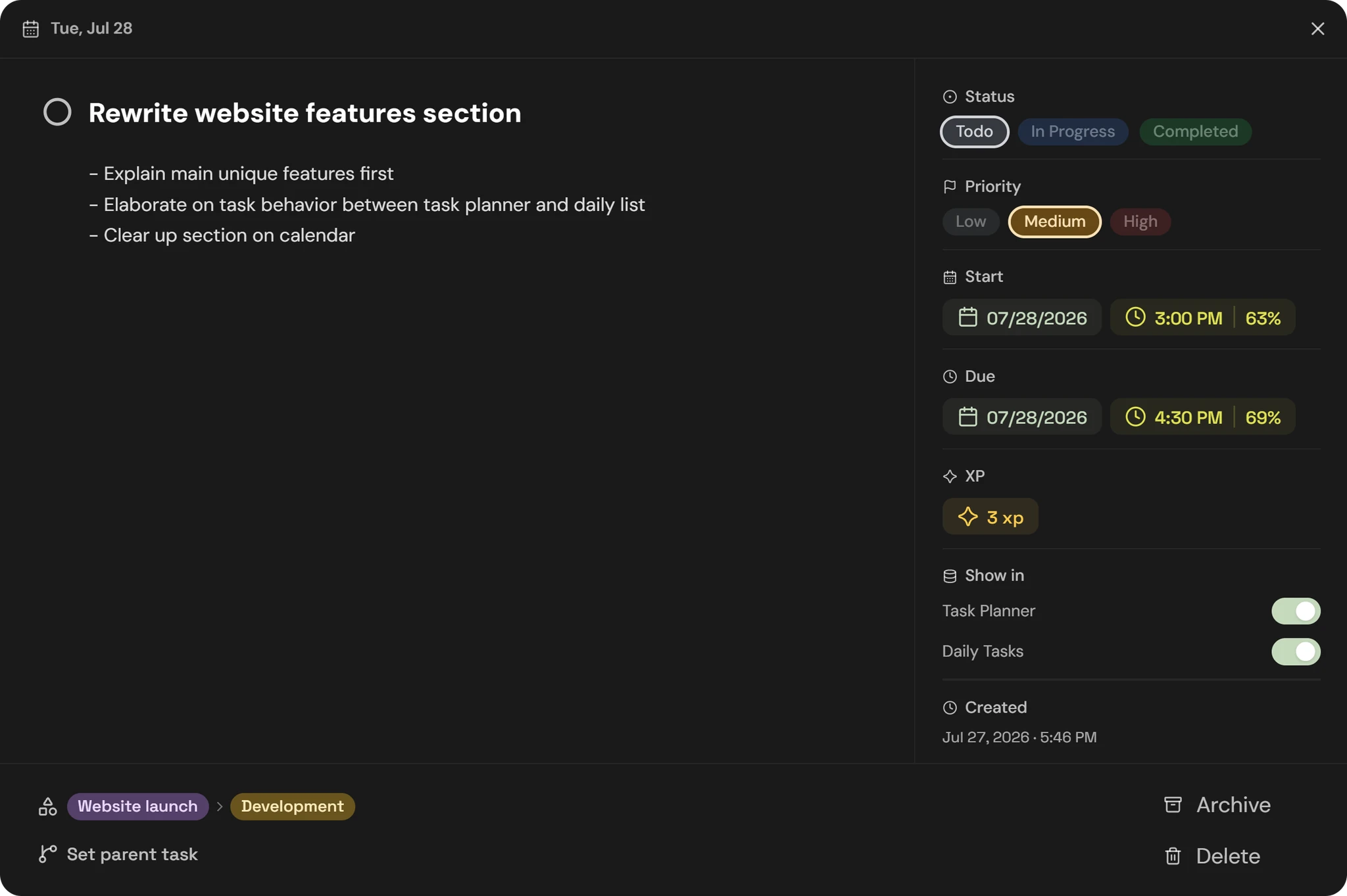
All the fields
- Status
- Todo, In Progress, or Completed — or cleared. Checking the circle sets Completed; new tasks start as Todo.
- Priority
- Low, Medium, High, or none. None by default.
- Start & due dates
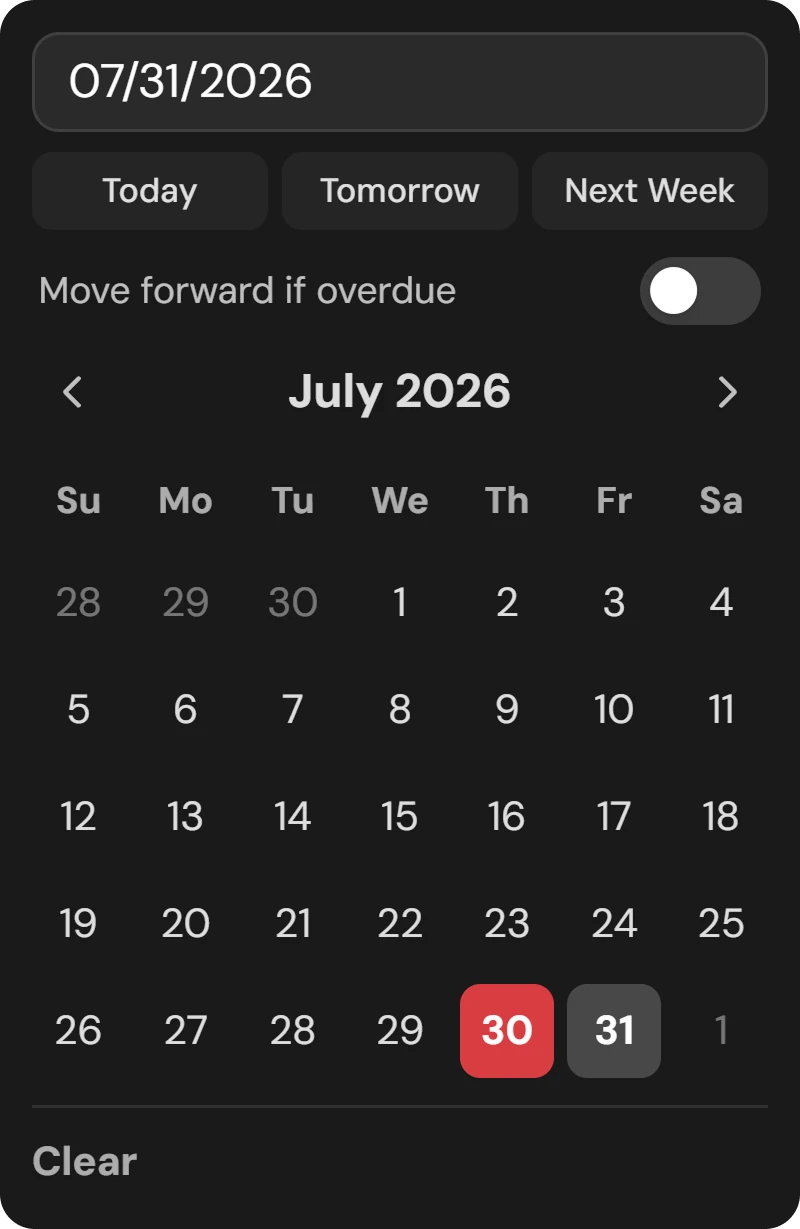
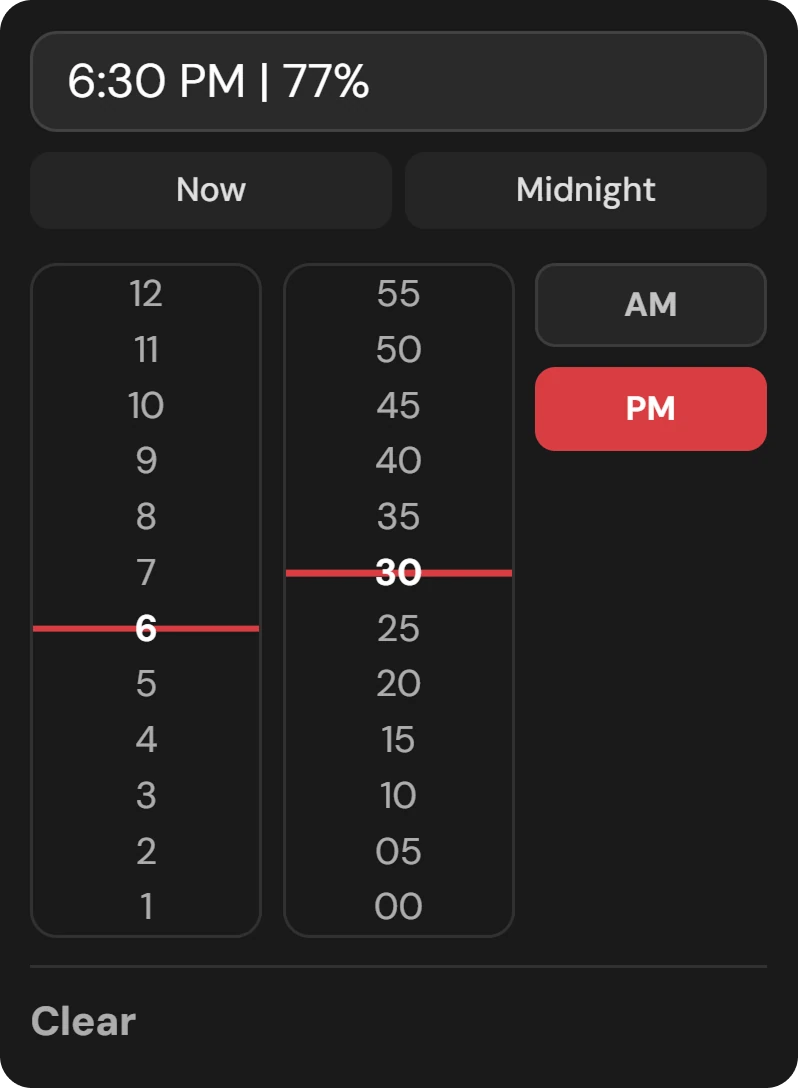
- Each takes a date, and once dated, a time. No date means the time chip is grayed out.
- Move forward if overdue
- Per task: an overdue task rolls its due date to today and keeps appearing in the daily list until it’s done.
- XP
- 1 to 10, or none. New tasks are 3 XP — change that default in settings.
- Notes
- Free text, as long as you want.
- Collection
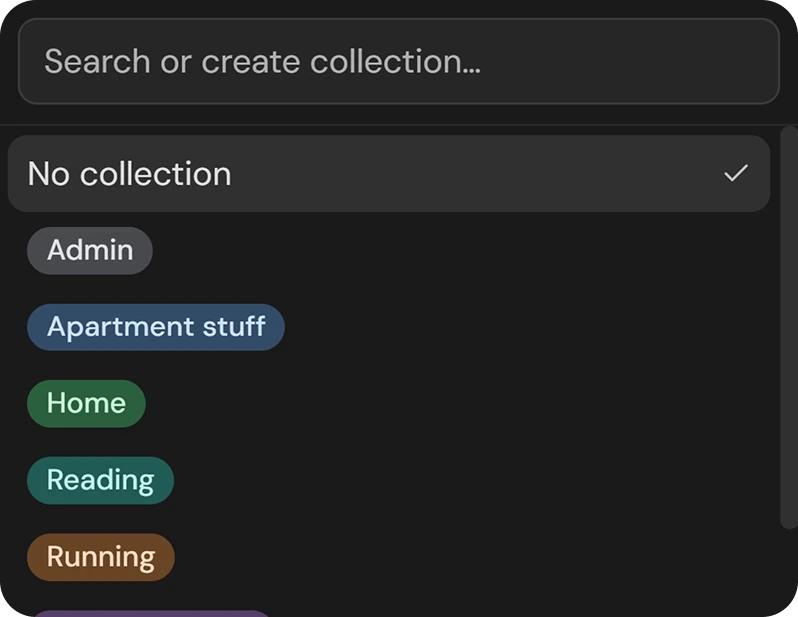
- Folders for tasks, nestable. Give a task a parent and it inherits the parent’s collection.
- Parent task
- Any task can be a subtask of any other. The picker is the same search as Ctrl+K.
- Show in
- Two switches — Task Planner and Daily Tasks — controlling which pages a task appears on. Both on by default.
- Archive
- Pulls it out of the planner views and out of search, and takes its subtasks with it. Not a delete.
- Dates you can type
- 07/12/26, july 12, or july 14, 2026.
- Times you can type
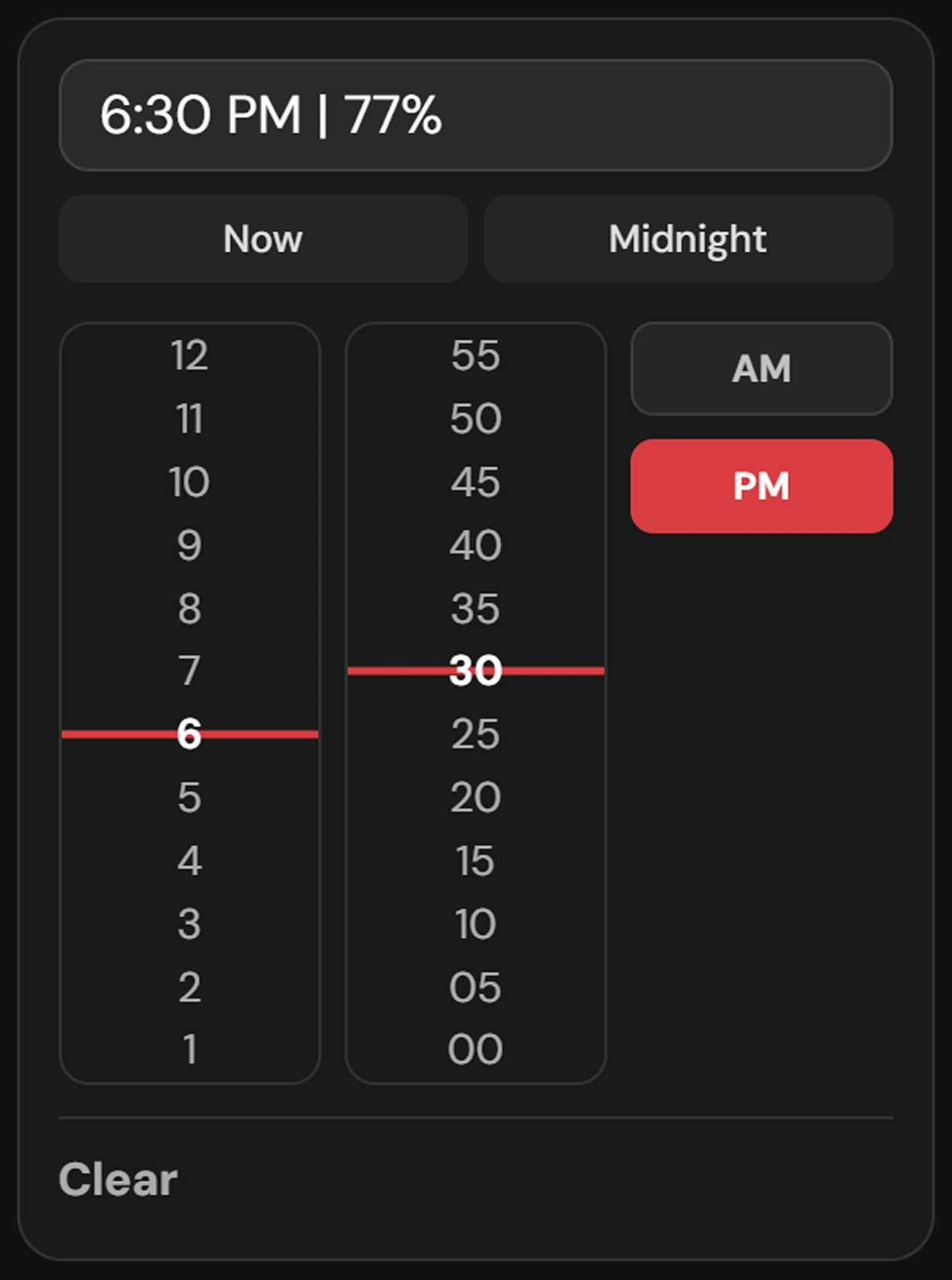
- 3p, 2:45 am, 9:21 — or a percentage of the day, where 33% is 8 AM.
Daily list
Conquer the day
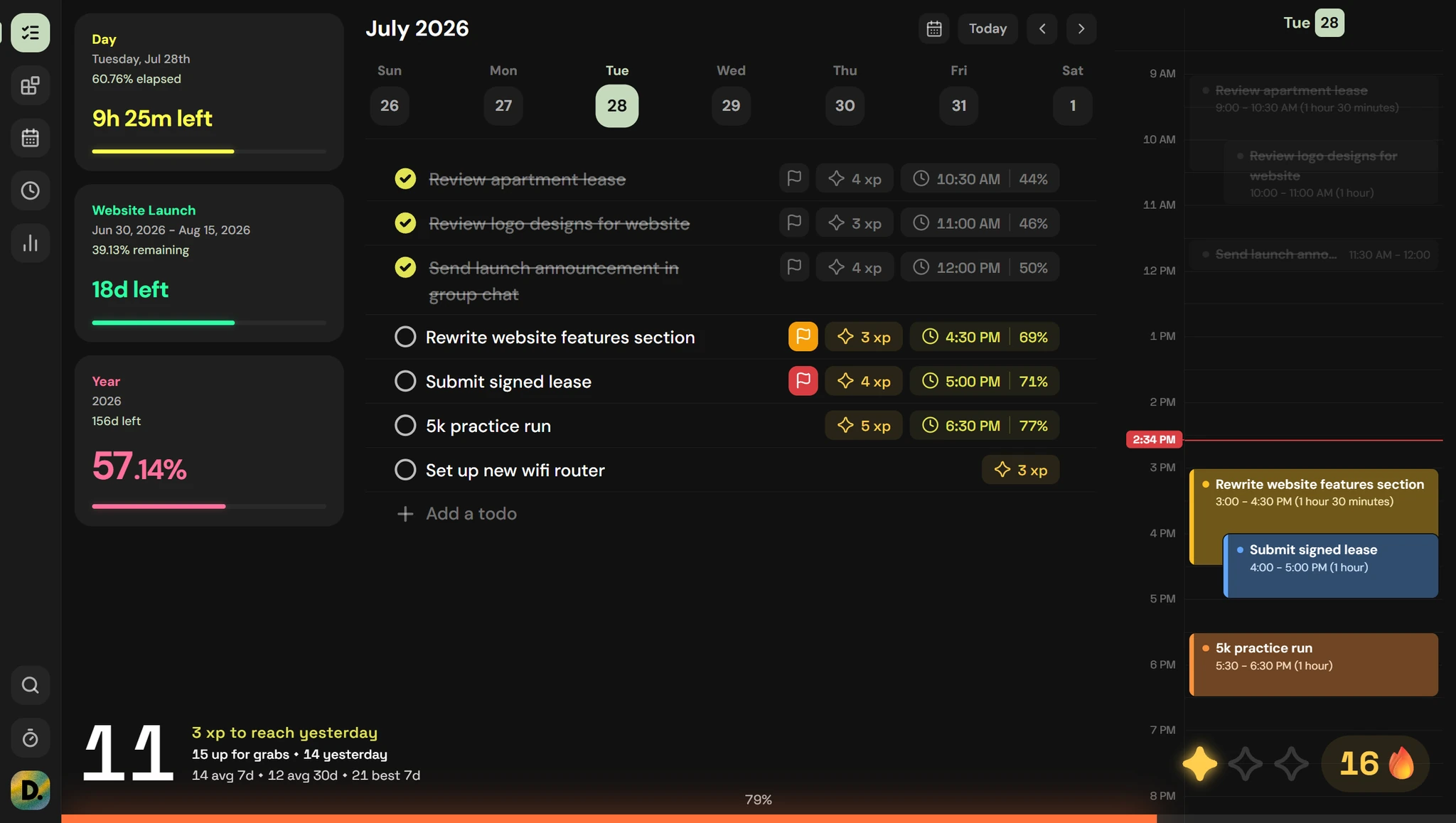
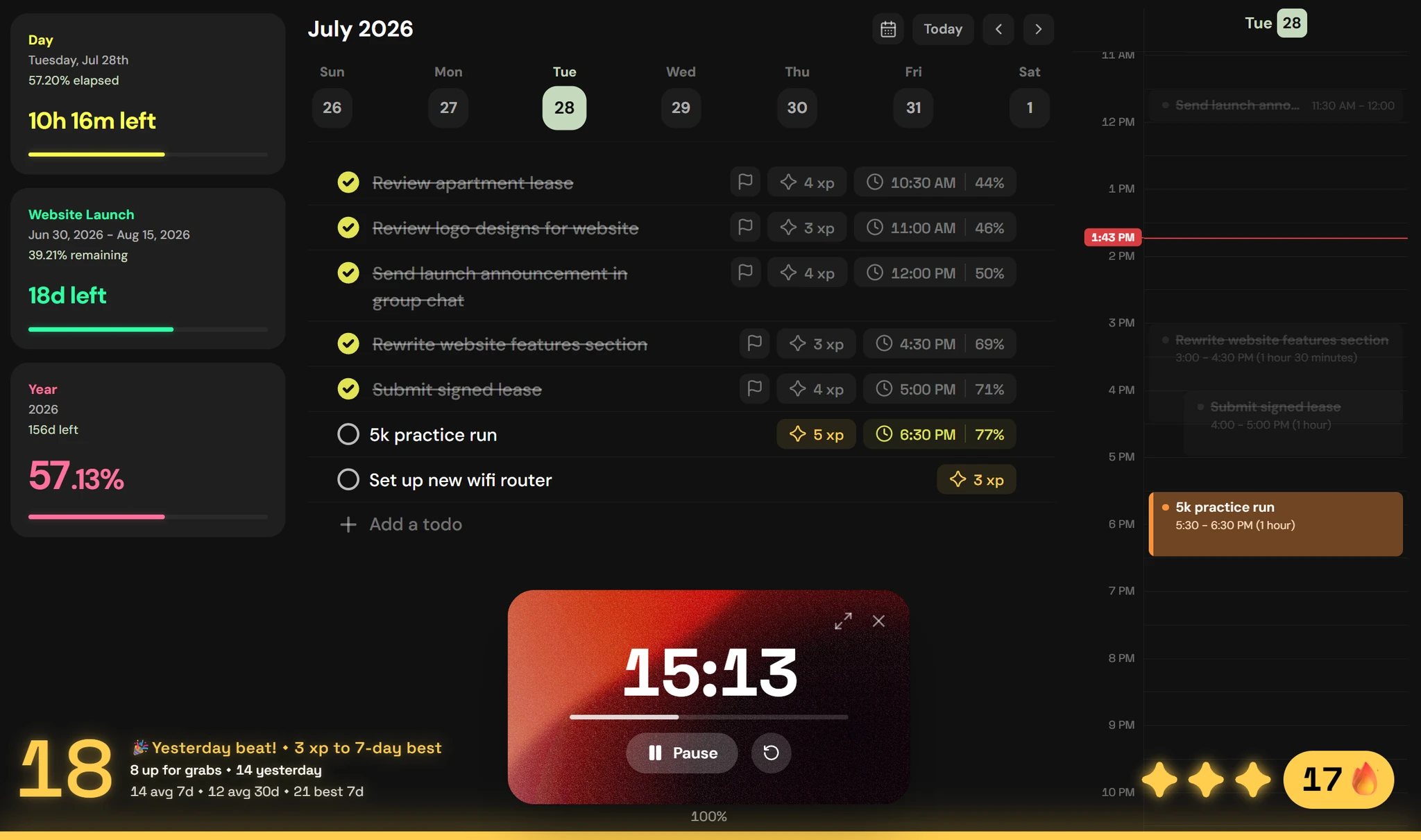
One day, one list, nothing else competing for the space. Time trackers count down the left, a live one-day calendar runs down the right, and your XP for the day sits at the bottom.
- Week strip
- Quick-add panel
- Drag to reorder
- Live day calendar
Working the day
- Move between days
- Week strip to pick a day, ‹ and › for previous and next week, Today to jump back, and a month picker for anything further out. First day of the week is your choice.
- Add a todo
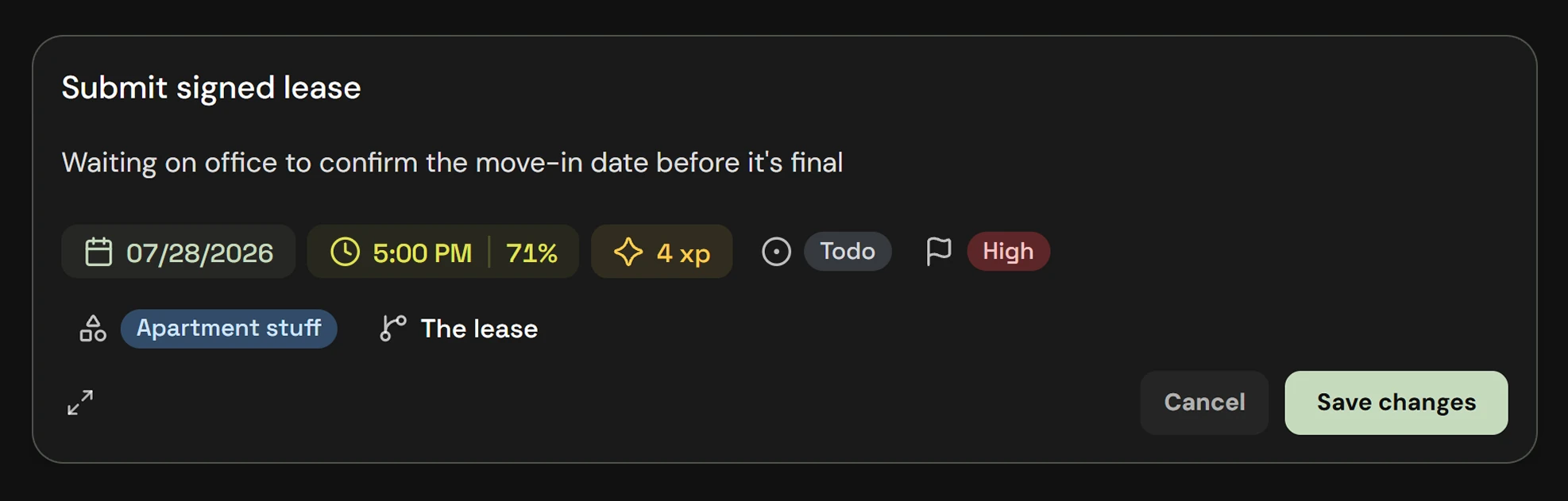
- Opens a quick-edit panel on a new untitled task: title, notes, due date and time, XP, status, priority, collection, parent. Clicking an existing task opens the same panel to edit it.
- Right-click a row
- The same actions as the quick-edit chips: set date, set time, set parent, open in full view, delete.
- Hover a row
- Grab handle to drag-reorder, maximize to open full view, … for the context menu, delete on the right.
- Check it off
- Click the circle. The row grays out and its status becomes Completed.
- The one-day calendar
- A one-day slice of the main calendar. Tasks created here get the daily-list defaults, and every task is colored by its collection.
- Archived tasks still show here
- As long as the Daily Tasks flag is on. Archiving changes where a task sits in the planner and hides it from search, not from your day.
Task planner
The whole plan, in a table.
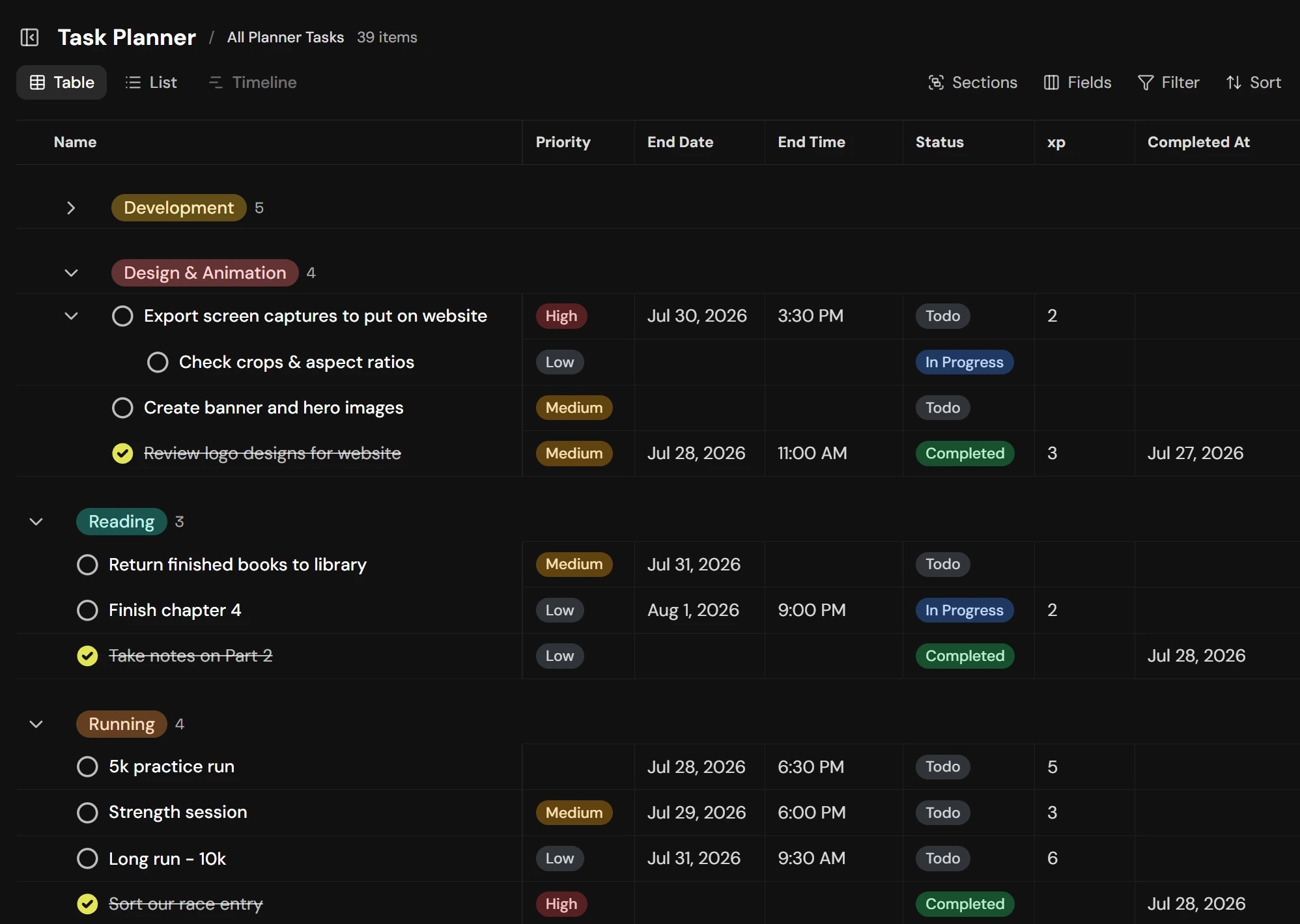
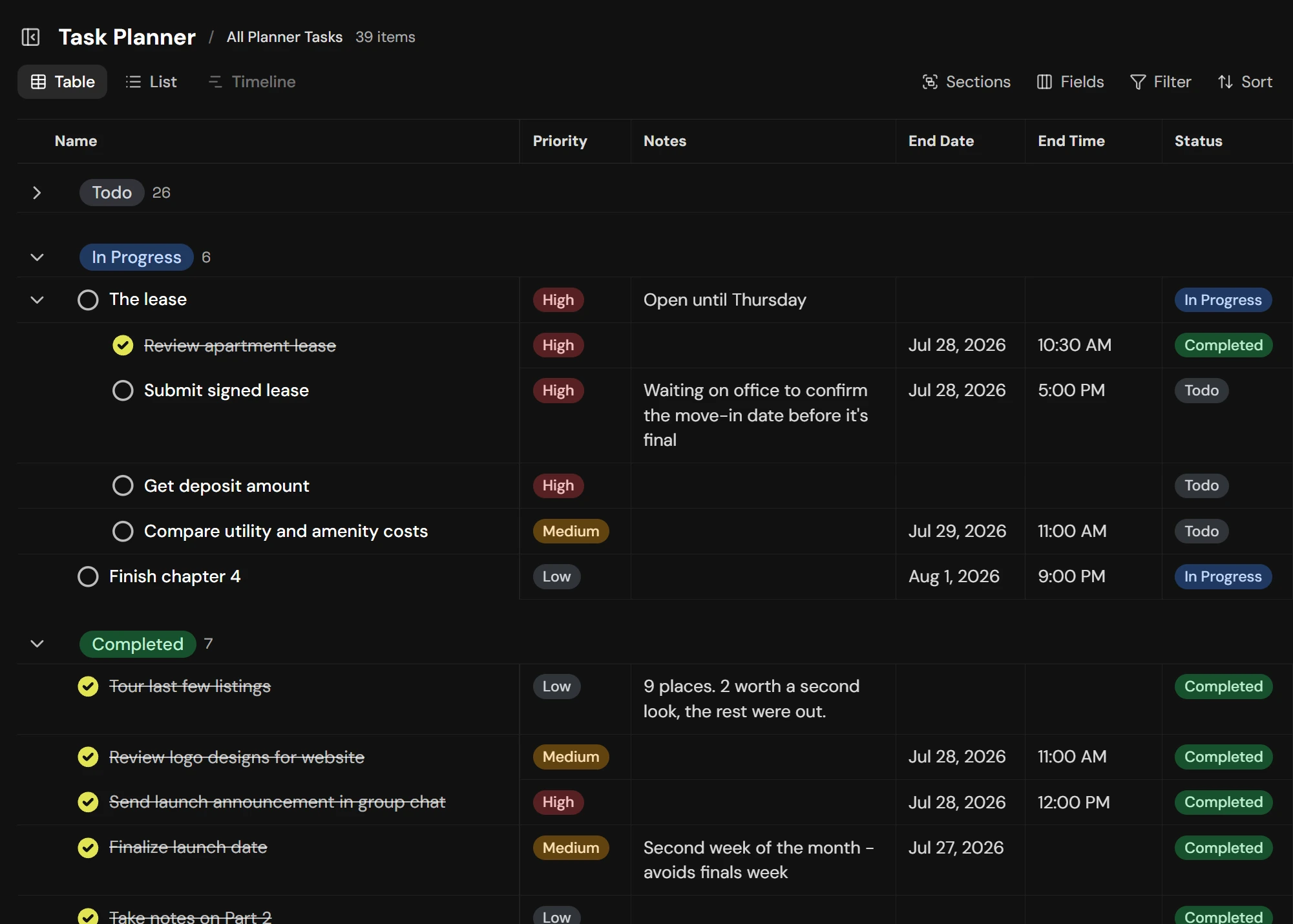
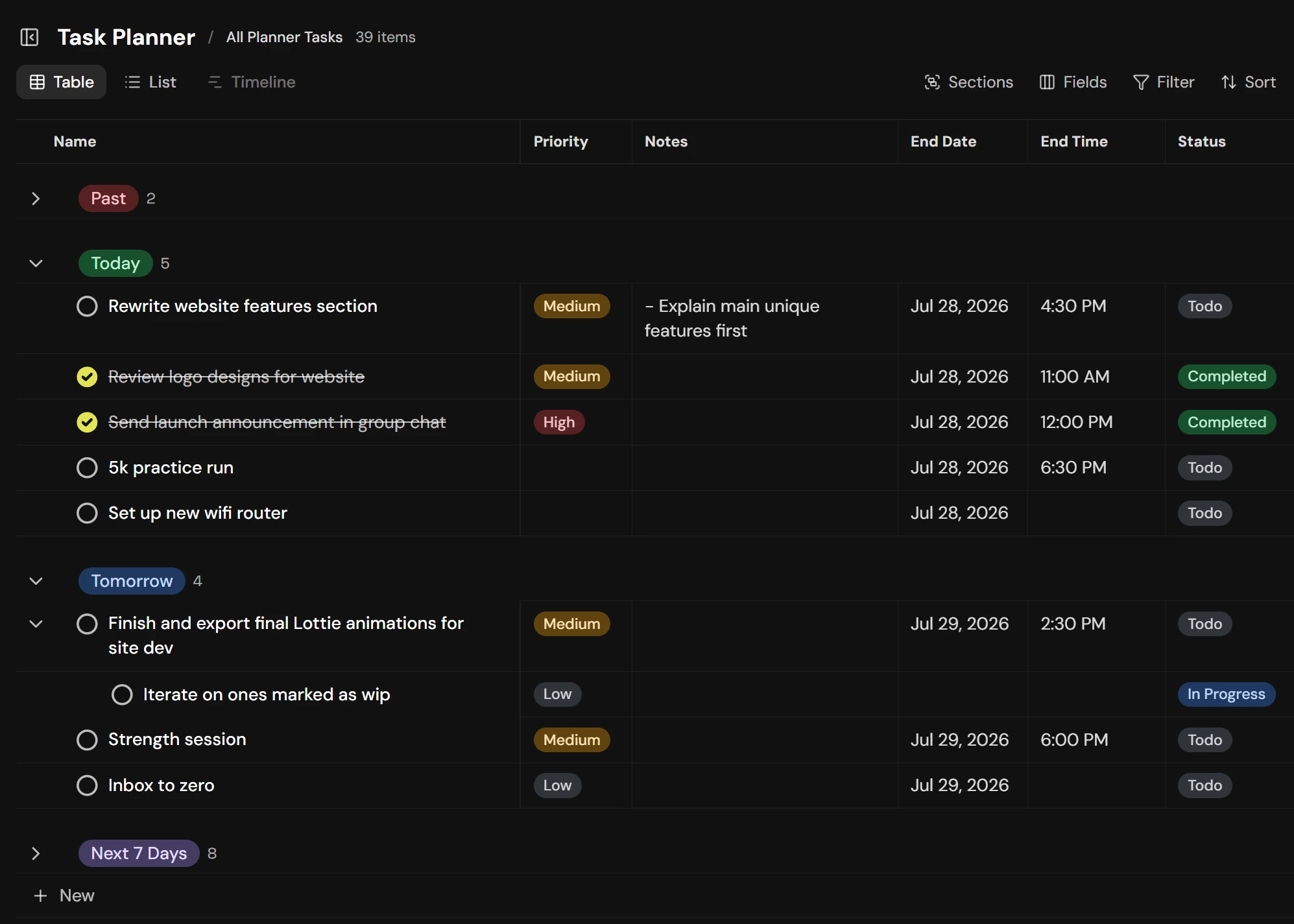
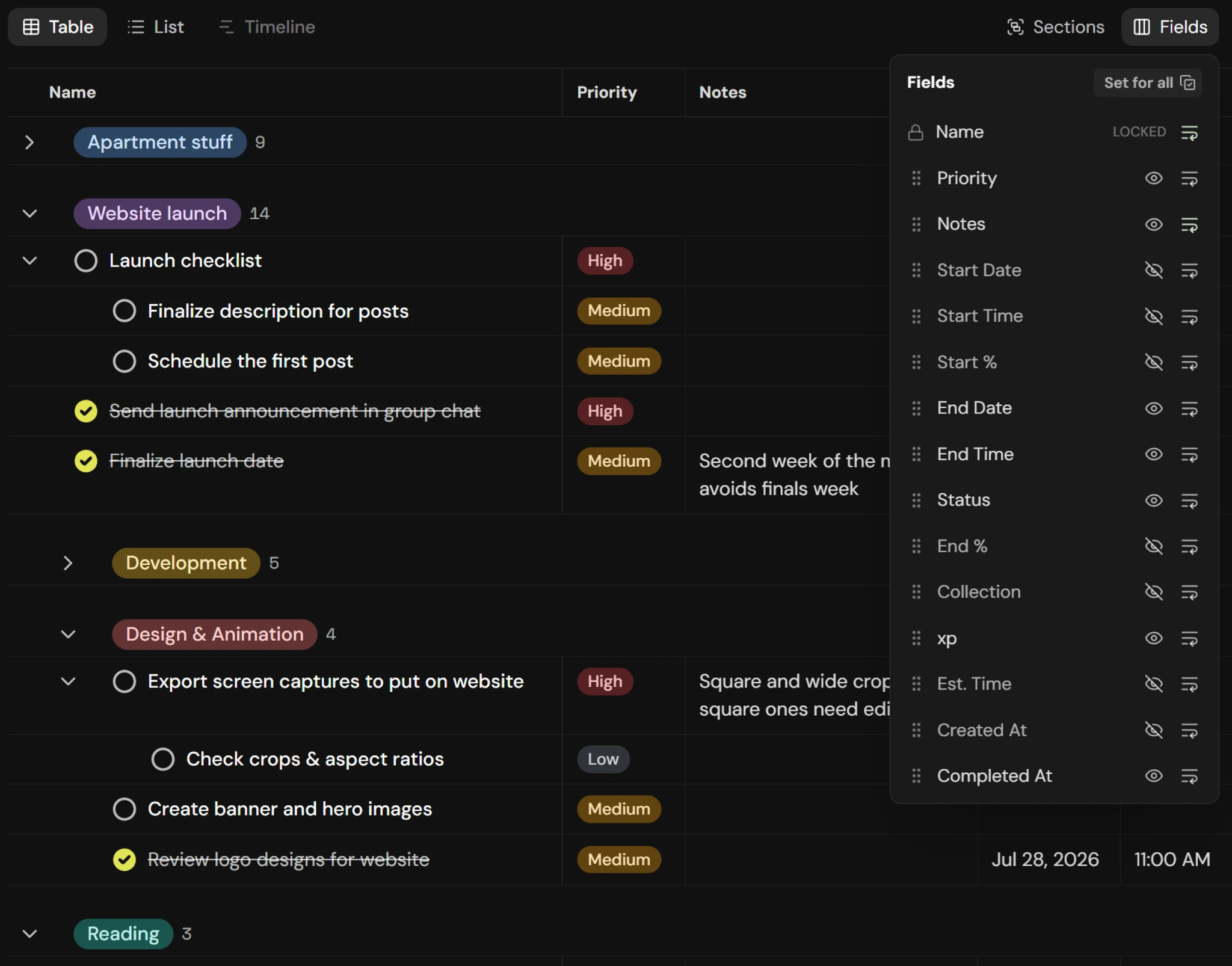
The planner is where work gets shaped: nested tasks inside nested collections, in a table you configure per view. Give a planner task a due date and it shows up in that day’s list — same task, two places.
- Table & list views
- Nested collections
- Filters & sort
- Pick your columns
Views and configuration
- Built-in views
- All Planner Tasks, Archived, Also In Daily List, Uncategorized, Categorized — plus every collection you make. Table mode by default, or List mode to strip it back to names. Timeline is in the works, not available yet.
- Group by
- Collections (the default, nested and indented), or Status, Priority, or Due Date, each ascending or descending. Grouping follows the parent-most task that has a value, so a subtree stays together.
- Sections
- Hide empty sections, hide subcollections, and where ungrouped tasks go — top by default. Plus one-click archiving of every completed task the view is showing, so filters decide exactly what gets cleared.
- Fields
- Choose which columns show, drag to reorder them, and toggle word wrap per column. Includes Start % and End % — the time as a percentage of the day elapsed.
- Filter
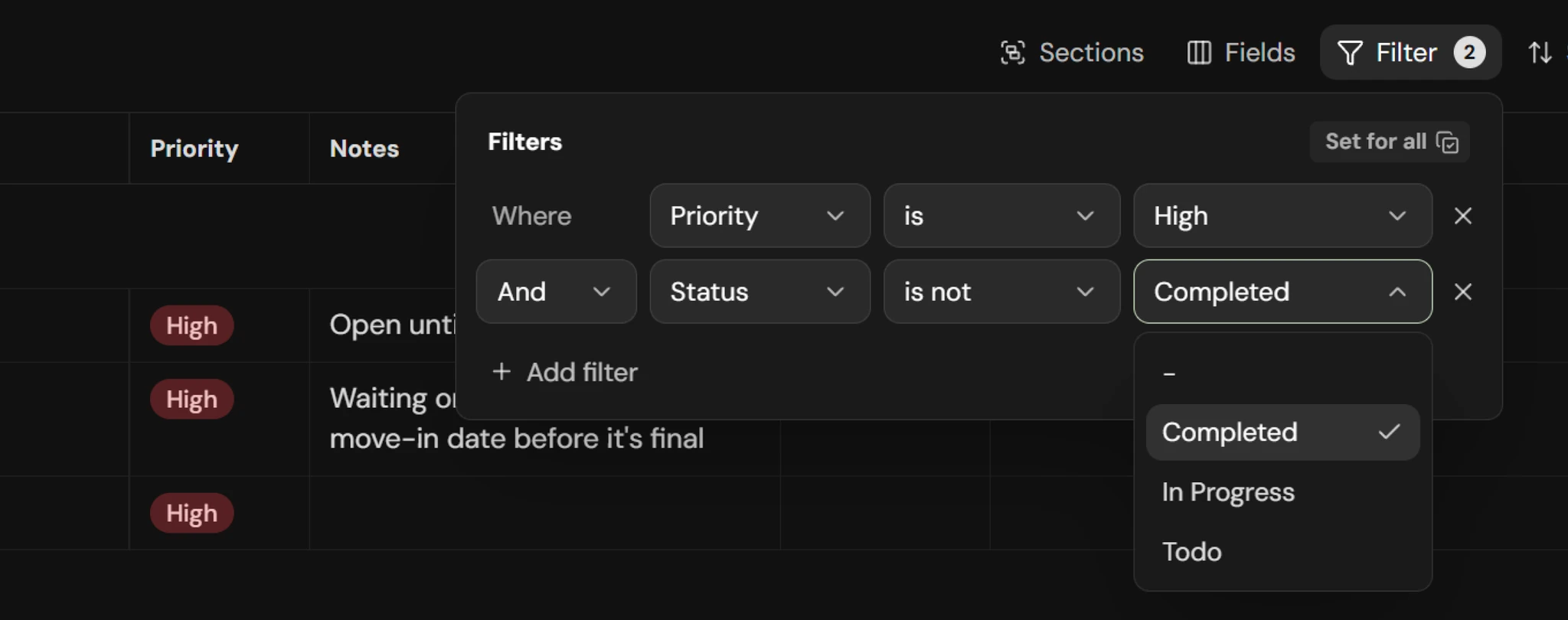
- Stack filters, each one and/or + field + condition (is, is not, contains, greater than, less than) + a value picked from what’s actually in the table.
- Sort
- Applied within a section; section order comes from the Sections menu.
- Saved per view
- Every view remembers its own sections, fields, filter, and sort.
- Collections
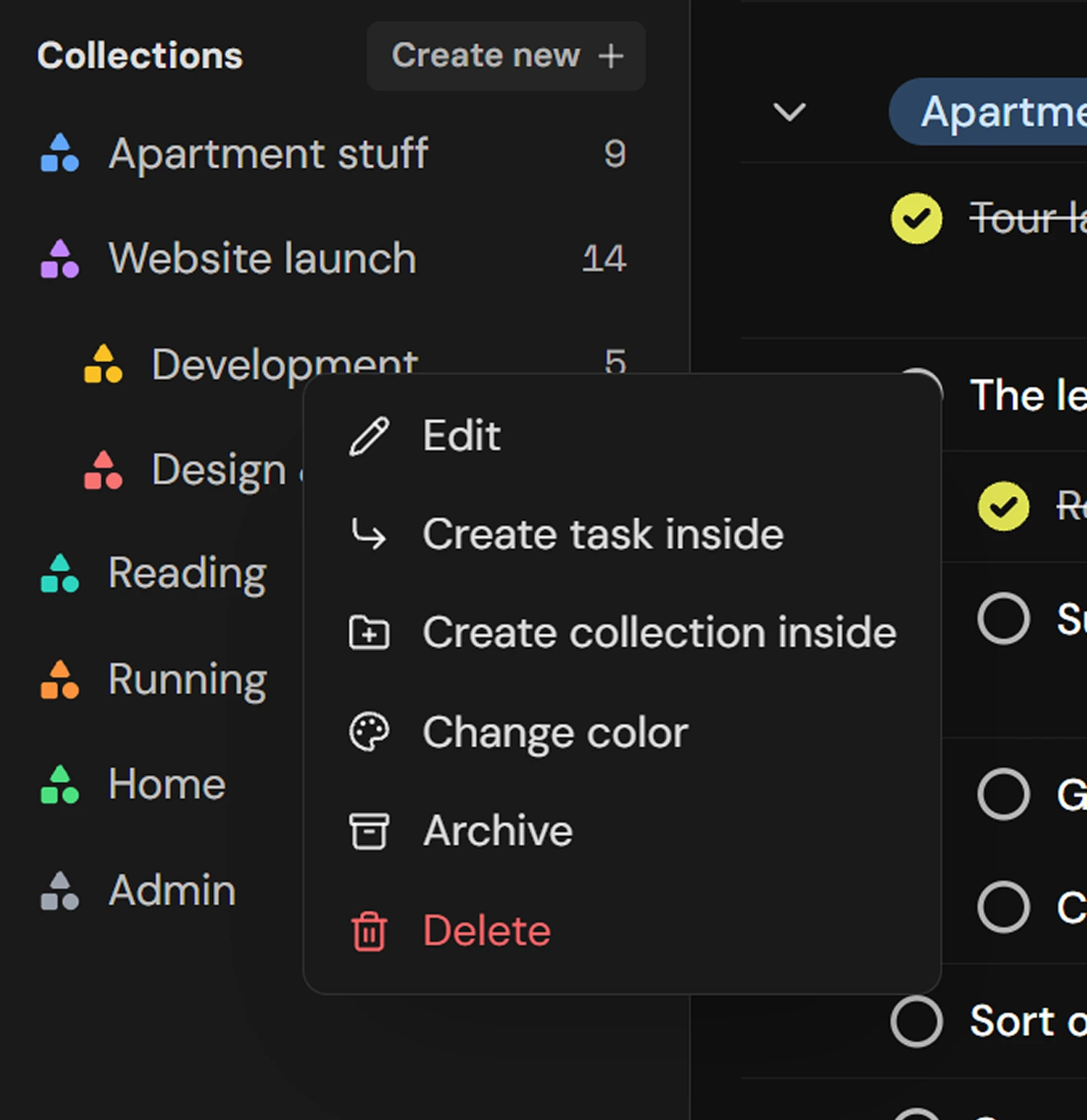
- Nest them, drag to reorder in the sidebar, right-click to edit, add a task or subcollection inside, recolor from 8 colors, archive, or delete. Archiving a collection or a parent task archives the whole subtree.
- Edit in place
- Click any cell for a popover editor; click a name or a collection header chip to rename inline. Created and completed timestamps are read-only.
Calendar
Drag it onto the day.
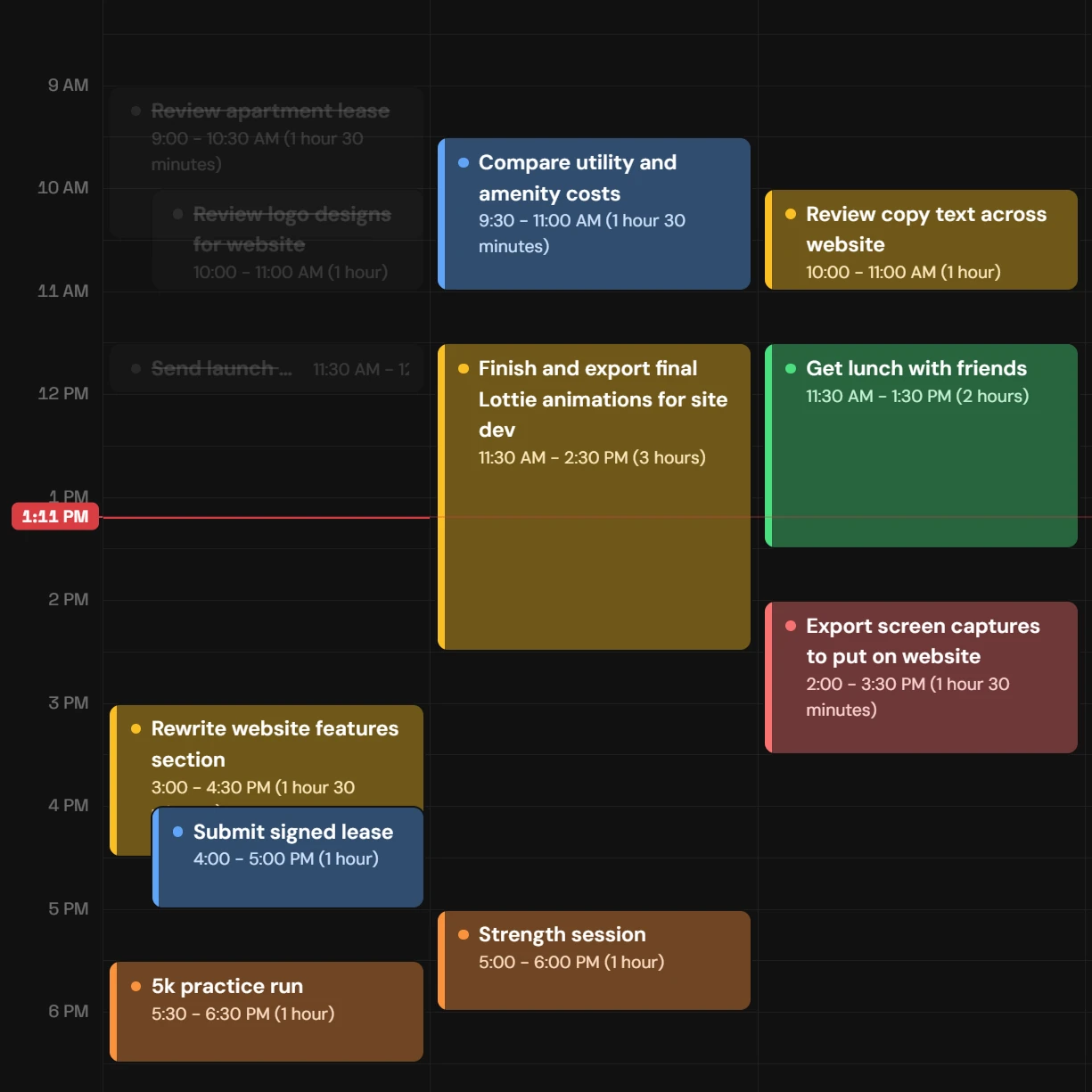
The same tasks, on a grid. Drag out a block to create one, drag its edges to change how long it takes, drag the card itself to move it. Overlaps fan out into lanes instead of hiding each other.
- 1, 3, 5 or 7 days
- Drag to create
- Per-collection visibility
On the grid
- Create and edit
- Click and drag empty space to create an untitled task and open it in full view. Click an existing card to open it. Drag the top or bottom edge to change its times; drag the card to change time or day.
- Range
- Show 1, 3, 5, or 7 days, jump to today, or step forward and back a set at a time.
- Overlaps
- Overlapping tasks get their own indent lanes; hovering brings a card to the front.
- What shows
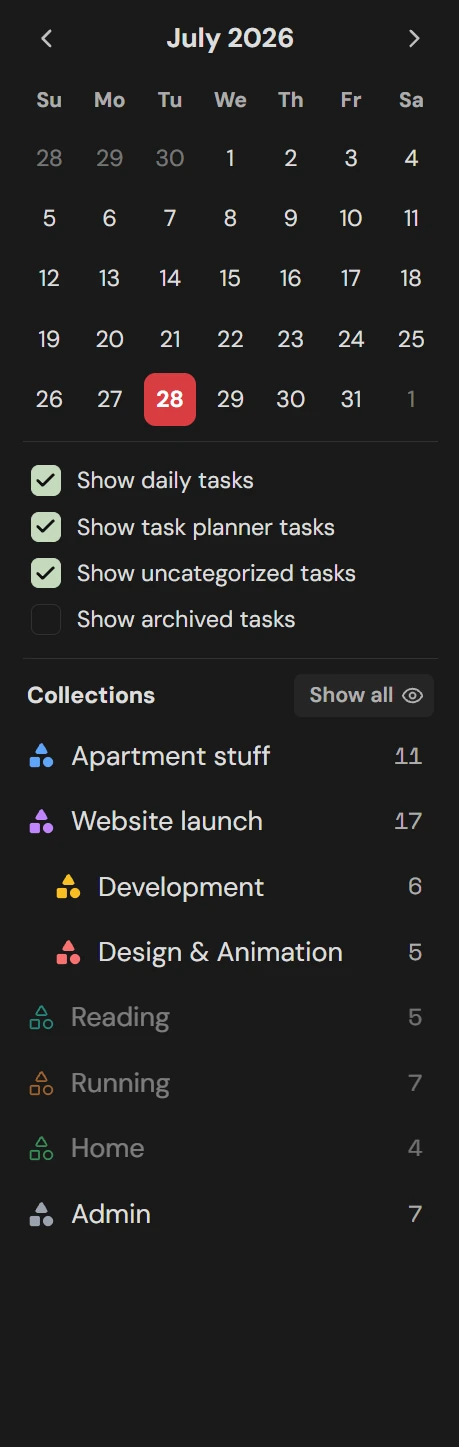
- Toggle daily tasks, planner tasks, uncategorized tasks, and archived tasks. Archived is off by default here; the rest are on.
- Collections
- Click a collection in the sidebar to show or hide its tasks, with hide-all and show-all in the corner. Toggling a collection with subcollections asks whether to include them. New collections start visible.
XP & streaks
Momentum you can see.
Every task is worth XP, and the day’s target is simply yesterday. Beat it and the bar turns gold. Beat your best week and it turns violet. Two stars holds your streak; three grows it.
- XP per task
- 3 stars a day
- Streaks
- Stats & CSV export






How the numbers work
- XP bar
- Completing a task earns its XP. The bar fills toward the day’s first target: match or beat yesterday’s XP. Hit it and the section turns gold; beat your 7-day best and it turns violet.
- The label follows you up
- First “_ to beat yesterday”, then “Ahead of yesterday — _ to 7 day best”, then “_ to all time best”.
- Three stars
- One for completing any task, one for matching or beating yesterday, one for matching or beating your 7/30-day average. Zero-XP days don’t count.
- Streaks
- Two stars holds your streak. Three stars grows it.
- Stats page
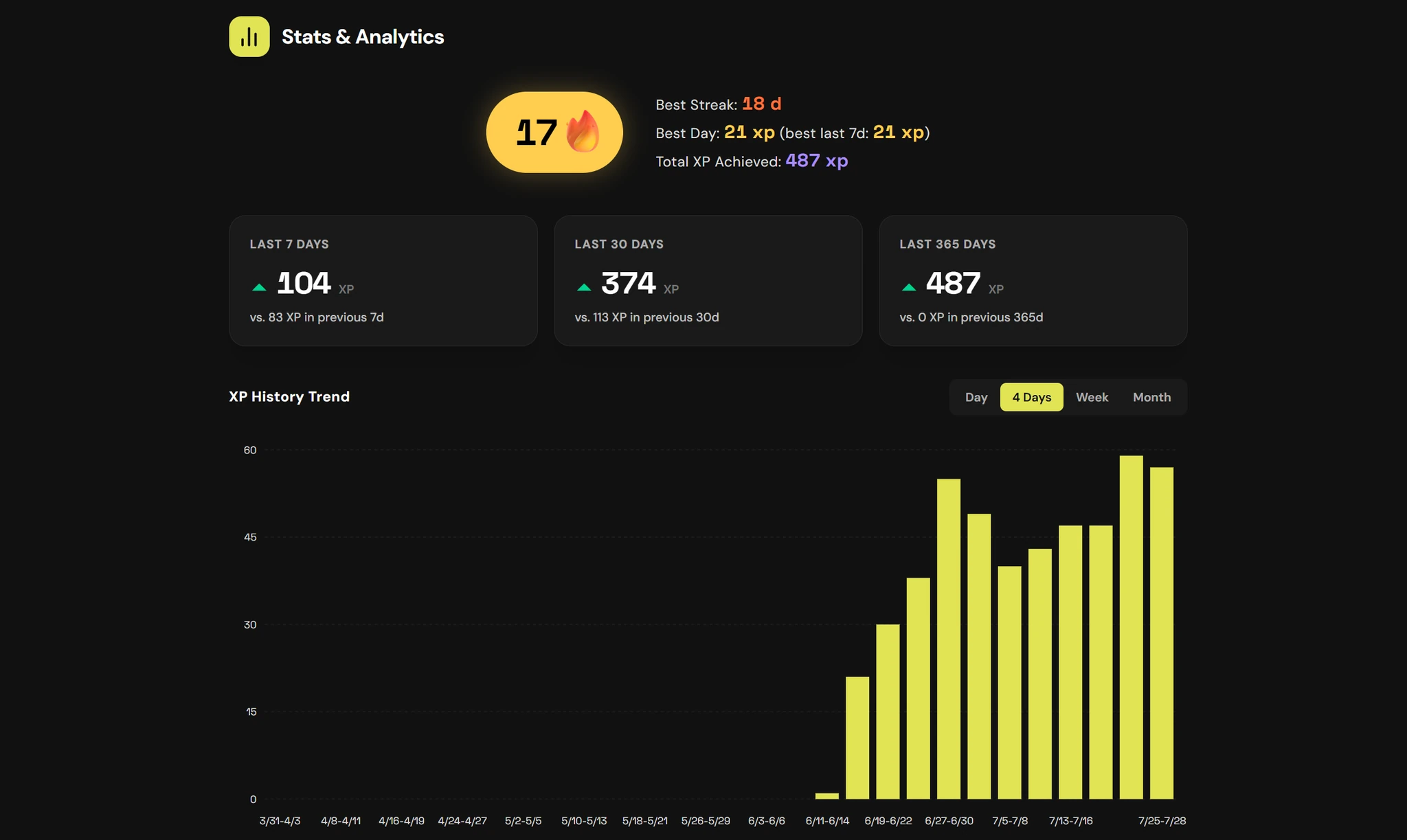
- Current streak, best streak, best day, total XP, XP for the week, month and year against the previous period, an XP history chart, and a 30-day breakdown by collection.
- The log
- Every task worth more than 0 XP, exportable as CSV.
- Only daily-list tasks count
- A task that lives only in the planner earns no XP.
Time widgets & focus
Time you can visualize
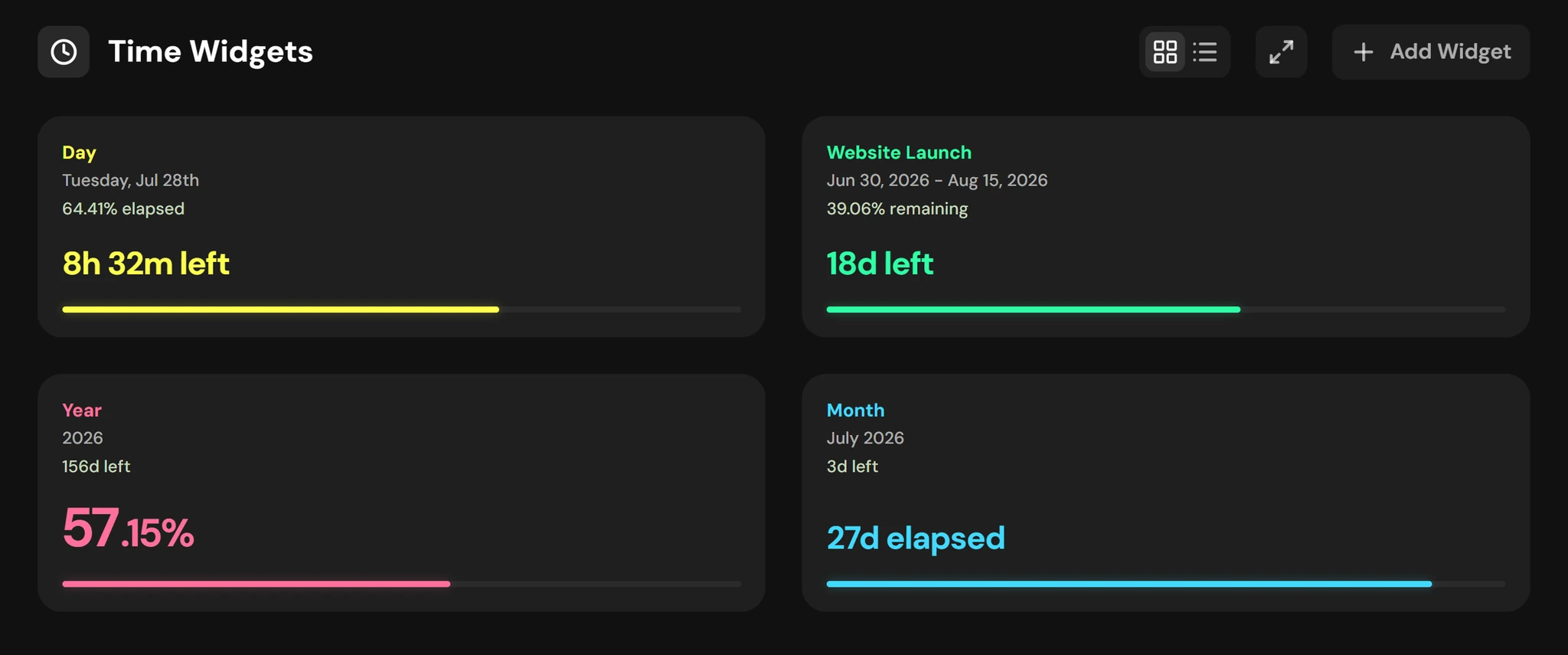
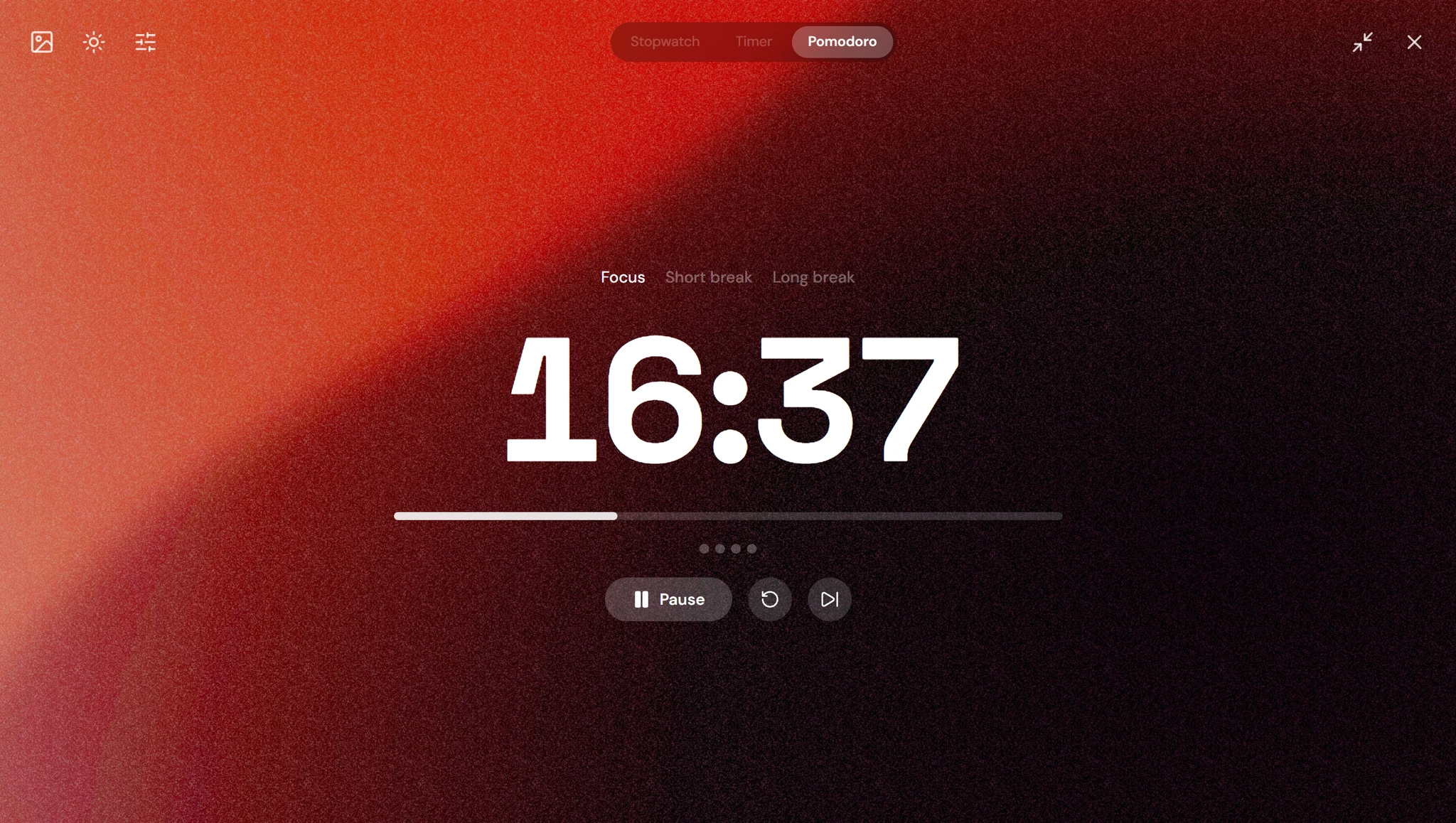
Visualize time with widgets that show how much of the day, the week, or the project is actually left. Stay focused on your work with a stopwatch, timer, and Pomodoro focus and break sessions.
- Day / week / month / year
- Timer & Pomodoro
- Fullscreen focus
- Space / R / Esc
Widgets
- Interval
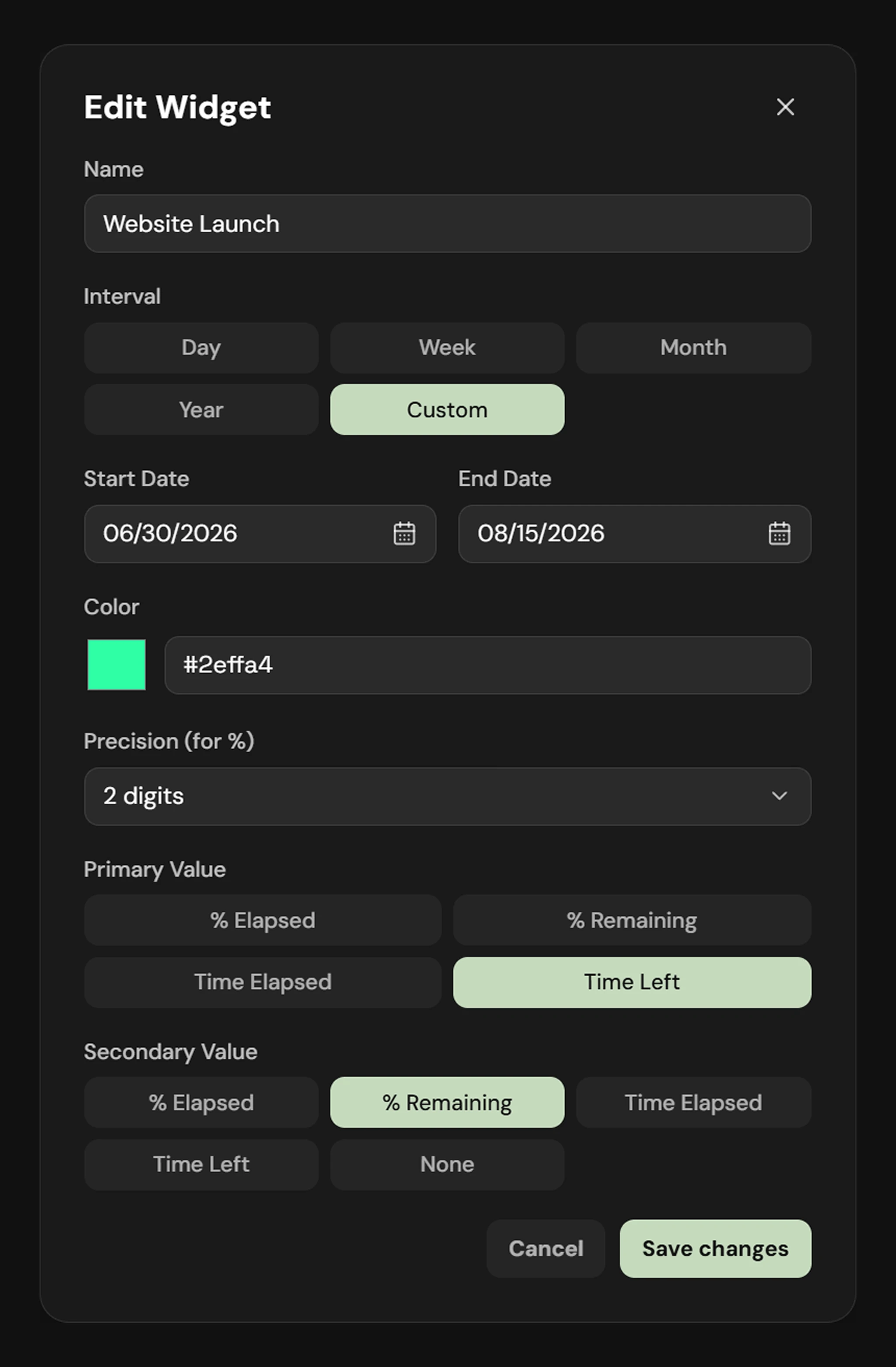
- Day, week, month, and year repeat automatically. Custom doesn’t: it fills to 100% and stays there.
- Values
- Pick what the big number shows and what the small line above it shows. Time left and time elapsed rescale themselves: days above 24 hours, hours and minutes under that, minutes and seconds under an hour.
- Color
- Per widget; the title, bar, and primary value all take it.
- Where they live
- A dedicated page with list, grid, and fullscreen modes, and the same widgets as a list down the left of the daily page. Hover any card to edit or delete it.
Focus: stopwatch, timer, Pomodoro
- Two presentations
- A card that floats over the app while you work, or fullscreen. The card shows just the clock, a progress bar, start/pause, and reset; everything configurable lives in fullscreen.
- Stopwatch
- Counts up from zero.
- Timer
- Presets at 5, 10, 15, 30 and 60 minutes, or type your own: 25, 90m, 1h30, 1:30, 1:30:00, 90 minutes. At zero it doesn’t stop — it flips to an accent color and counts up into overtime, so a long session tells you by how much. +5 min extends a running countdown.
- Pomodoro
- Focus, short break and long break, jumpable at any time; a manual jump resets that block and leaves it paused so nothing starts behind your back. Cycle dots track the set. Skip advances and counts the current block. Reset restarts the block; press it again on a full block to clear the set.
- Pomodoro config
- Block lengths, how many focus blocks make a set, and independent auto-start for breaks and for the next focus block. Breaks auto-start; the next focus block doesn’t, so restarting work stays a choice.
- It keeps running
- Refresh mid-session and it resumes at the right time. The tab title shows a live countdown, and an optional notification fires when a block ends while the app is in the background.
- Backgrounds & keys
- Set your own background image, dim and blur it. Space starts and pauses, R resets, Esc leaves fullscreen.
Task finder
Every task, one keystroke away.
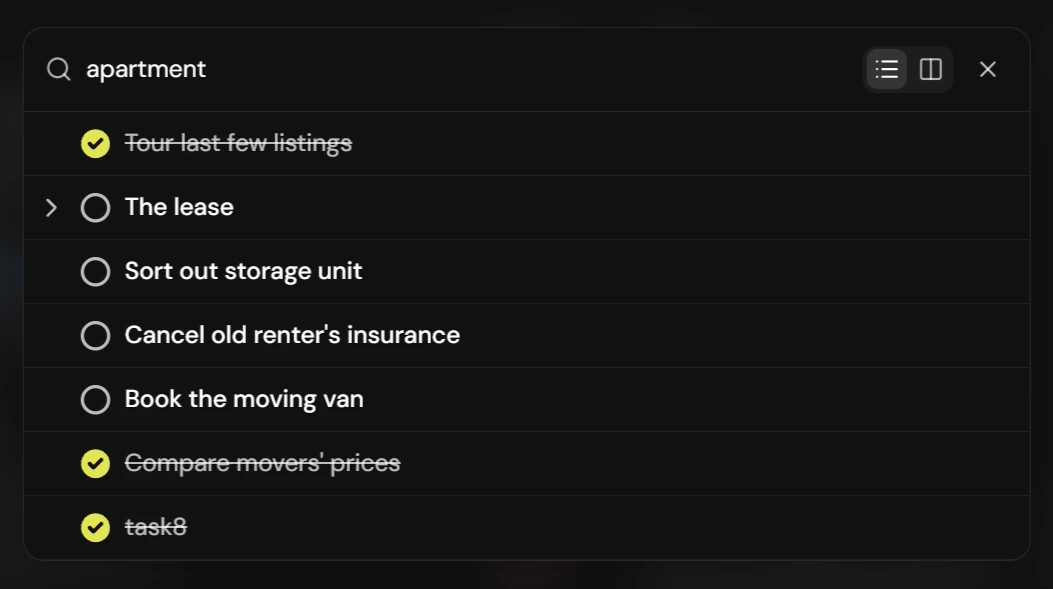
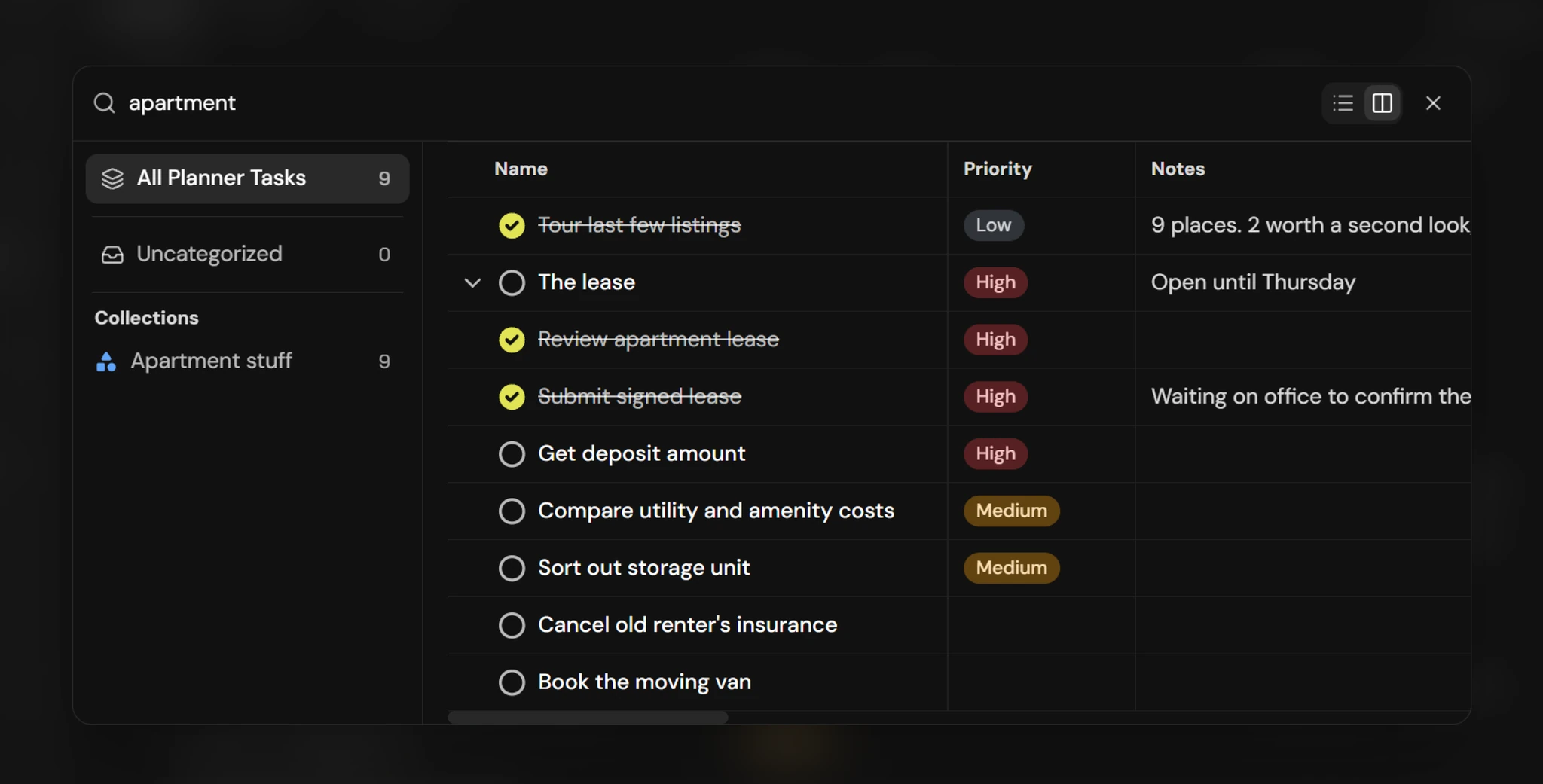
Ctrl+K from anywhere. It’s a fuzzy search — the VS Code kind — across names, notes, collections, and fields, not just titles. It’s also the picker you use to set a parent task.
- Ctrl+K / Cmd+K
- Fuzzy matching
- List or table mode
Also in the box.
The rest of what you get.
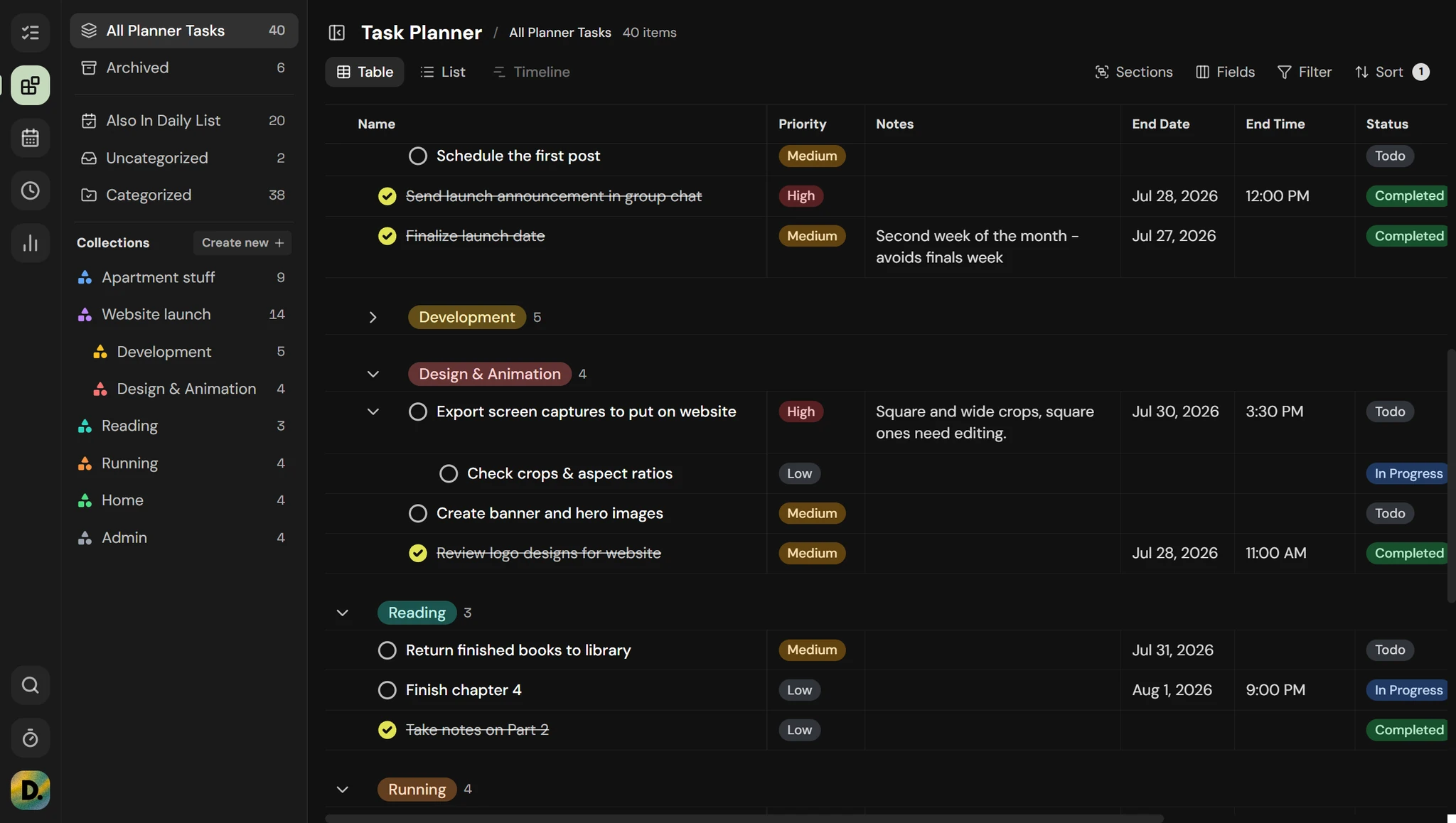
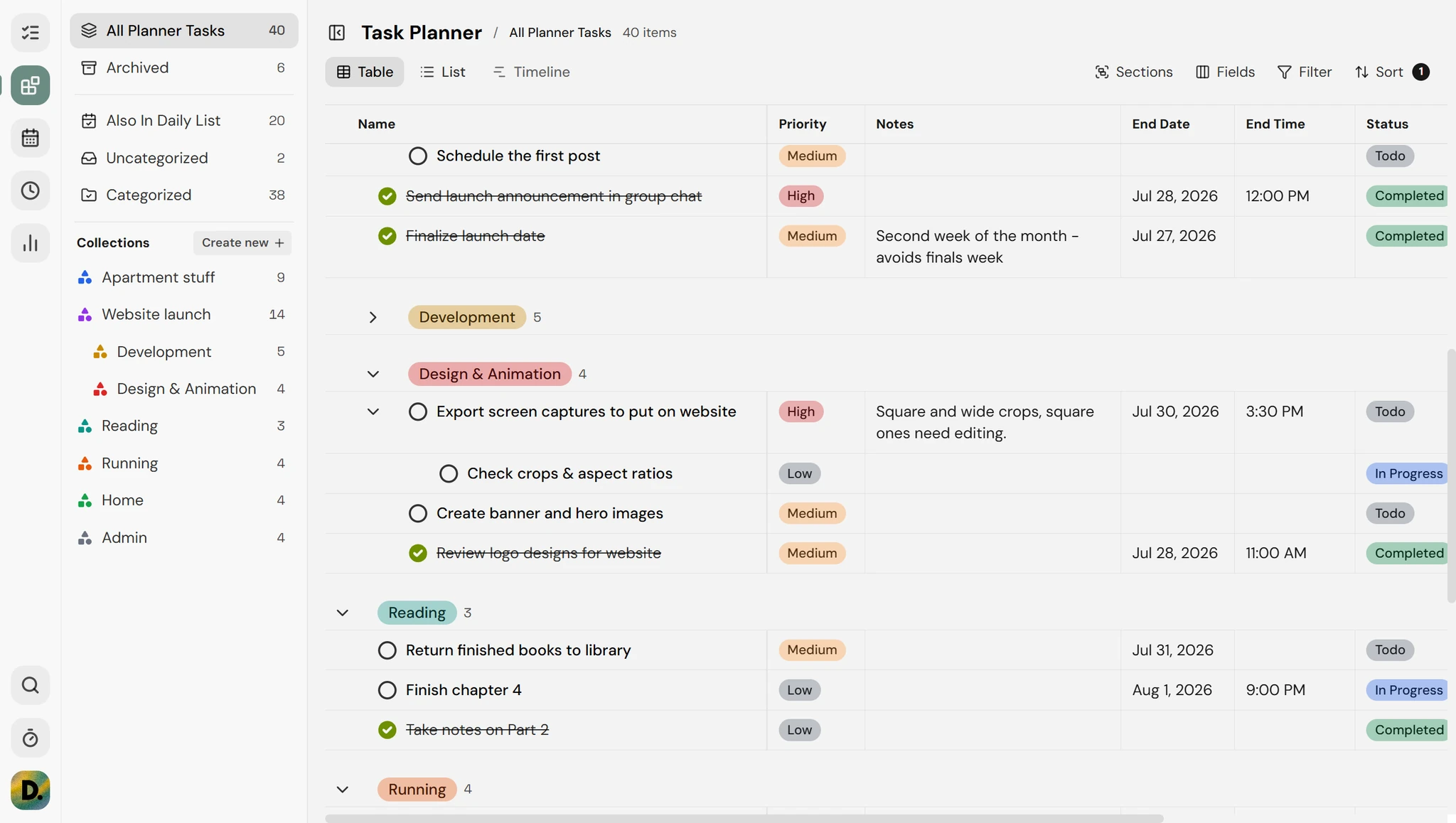
Light and dark
Switch in settings.
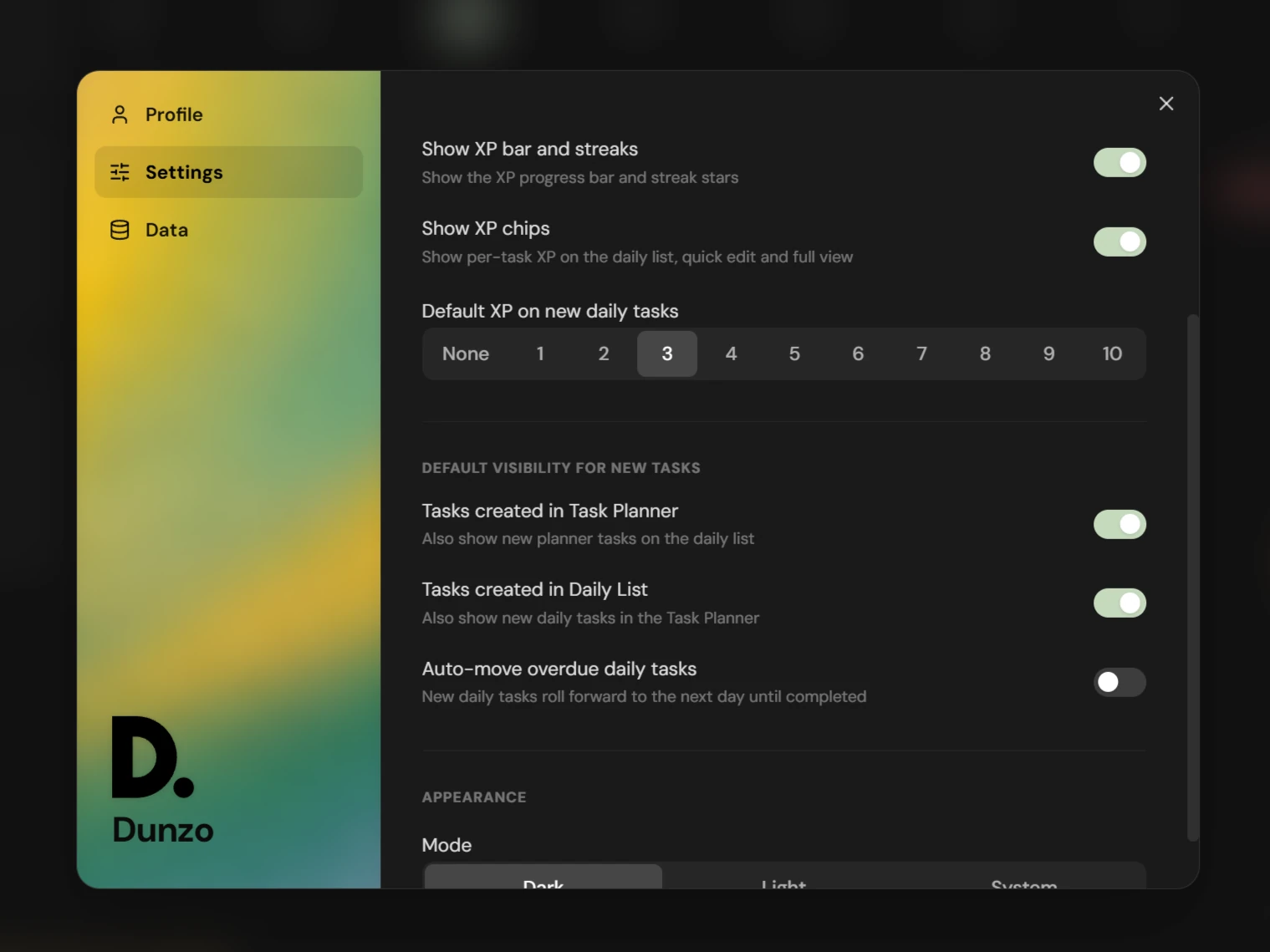
Settings that set defaults
First day of the week, default XP for new tasks, whether new tasks show in the planner, the daily list, or both, and whether they auto-move when overdue.
Synced to your account
Sign in and your tasks, collections, and per-view configuration follow you.
Your data, exportable
Export everything to JSON for backup and import it back. Plus CSV export of the XP log.
Inputs that read English
Date and time fields take july 14, 2026, 3p, 9:21, or 33% of the day. Every picker in the app, same parser.
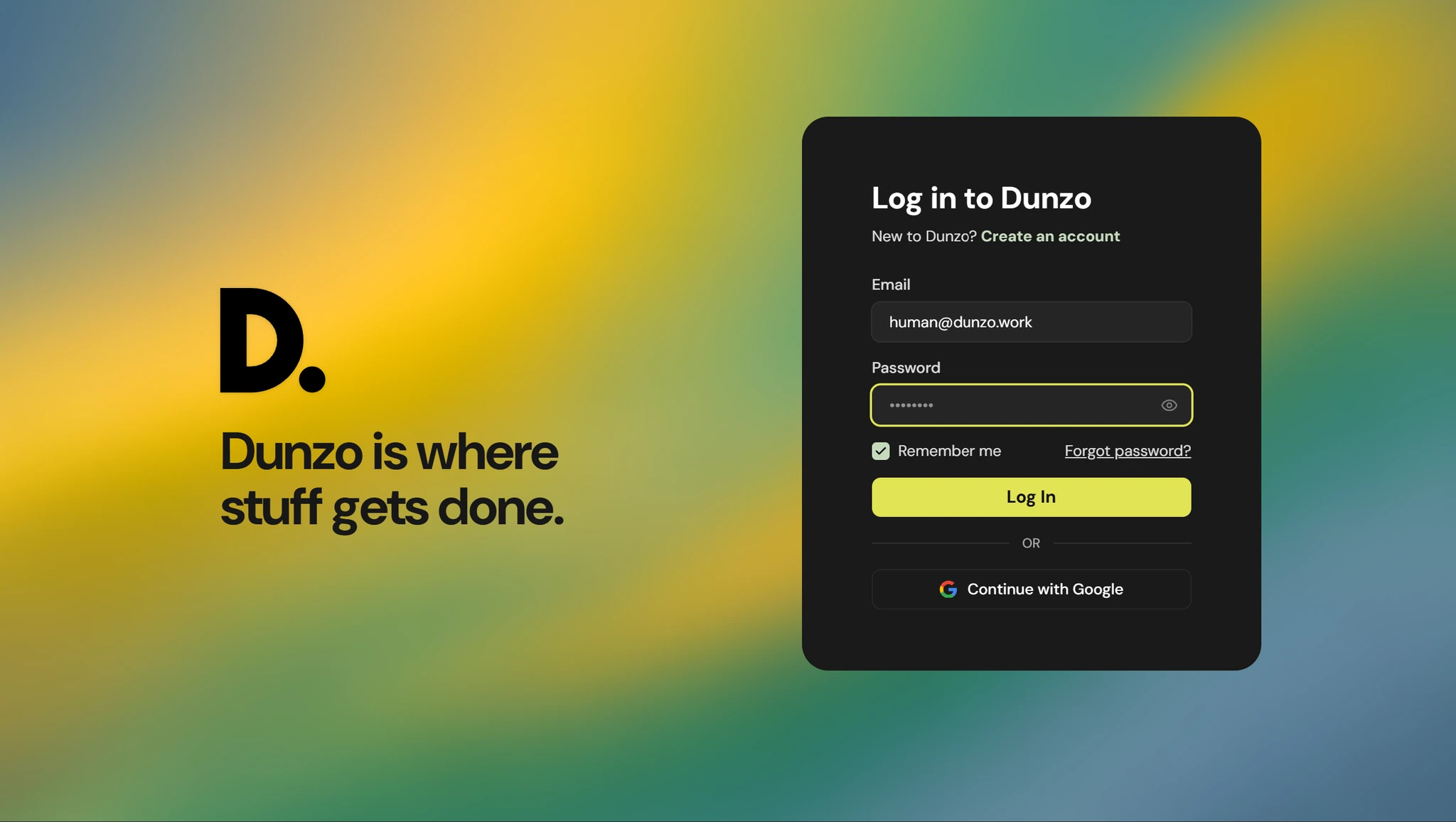
Sign in and go
Email and password, and a password you can reset from settings.
Start with today's list.
Sign in, add three things, check one off. That's the whole onboarding.